How to Install Tor Browser Safely (Beginner Guide 2026)
A simple walkthrough of how to install Tor Browser safely—official downloads only, fake-site warnings, first-run setup, and what to do next.
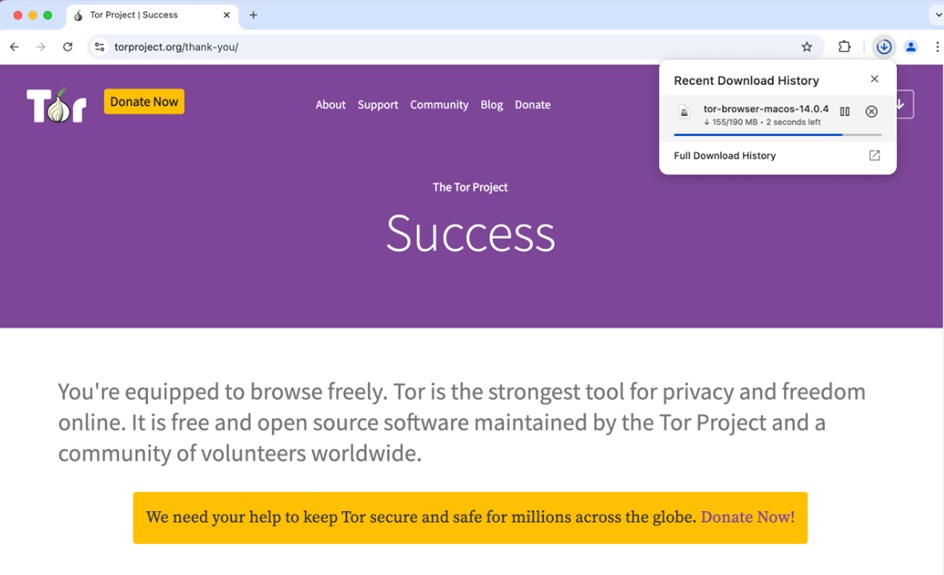
If you are searching for how to install Tor Browser, the most important step is not the install button—it is getting the real software. Fake Tor sites and copycat installers are common. This beginner guide shows a safe path for 2026 in plain language.
Tor Browser is a free browser from the Tor Project. It routes traffic through the Tor network to help protect your privacy and to open .onion sites. It is legal to install in many places when used for lawful privacy and research. Local laws still matter; know the rules where you live.
What is Tor?
Tor is a free network that helps protect your privacy and anonymity online. It hides your IP address and makes it harder for websites and other people to see where you are connecting from. Tor also helps protect your identity while you use the network, giving you greater privacy when browsing the internet.
Only download Tor Browser from official Tor Project channels. Ignore ads, “Tor + VPN booster” installers, and sites that ask for payment to unlock Tor Browser.
Before You Download
- Use a normal up-to-date computer or phone you control.
- Avoid downloading Tor on a shared public PC when possible.
- Decide why you need Tor: privacy, research, or access to onion services— onion services explained, layers of the internet. Choosing the "best" operating system really hinges on what you need in terms of privacy. If you're after top-notch anonymity, Tails OS or Whonix are fantastic options since they send all your traffic through Tor or utilize secure virtual isolation. For more regular use, Linux strikes a nice balance with solid security, while Windows and macOS are your go-to for a hassle-free setup.
- Remember Tor is not a free pass for illegal activity and does not make every website safe— Tor Browser safety tips.
Step 1: Get Tor Browser from an Official Source
Go to the official Tor Project website and use the download section for Tor Browser. Type the address carefully. Do not trust the first search-ad result without checking the domain.
Official channels matter because malware authors clone Tor branding. If a page pressures you to install a “faster Tor,” enter a license key, or disable your antivirus permanently, leave.
More context on scam patterns: avoid Tor scams, scam detection techniques.
Step 2: Choose the Build for Your System
Pick the official package that matches your device:
- Windows
- macOS
- Linux
- Android (official Tor app sources only)
Apple iOS users should follow current Tor Project guidance for supported apps rather than random App Store clones.
Step 3: Download and Verify When You Can
Download the installer or archive from the official page. Advanced users can also check signatures or hashes published by the Tor Project. Beginners who cannot verify signatures still gain most of the safety benefit by staying on the official site and refusing third-party mirrors.
To download the Tor Browser as a beginner, open a trusted web browser such as Firefox or Chrome and visit the official Tor Project website:
If you find the Tor Browser through a dark web search engine, check the website address carefully to make sure you are on the official Tor Project website before downloading.
Step 4: Install or Unpack Tor Browser
Windows
- Open the downloaded file.
- Choose an install location you can find later.
- Finish the setup wizard.
- Start Tor Browser from the shortcut it creates.
macOS
- Open the downloaded disk image or package.
- Move Tor Browser to Applications when prompted.
- Launch it from Applications.
- Allow it through macOS security prompts only if you confirmed the official download.
Linux
- Extract the official archive.
- Run the Tor Browser start script from the extracted folder.
- Keep that folder intact so updates and profiles work as designed.
Step 5: Connect for the First Time
When Tor Browser opens, use the option to connect. On a normal network, the default connect path is enough. If your network blocks Tor, you may need bridges later. Beginners can learn bridges after a successful first install— complete Tor guide.
The first connection can take longer than a normal browser launch. That is common on slow networks.
Step 6: Use Safer Beginner Settings
- Keep the default window size unless you know why you are changing it.
- Avoid random add-ons; extra extensions can weaken Tor Browser’s privacy design— Tor Browser privacy guide.
- Use the Security Level control for stronger protection on untrusted pages.
- Do not log into personal email or social accounts “just to test” if your goal is stronger anonymity.
- Update Tor Browser when it offers updates.
Official Install vs Unsafe Download Paths
| Source / method | Beginner recommendation | Why | Main risk if ignored |
|---|---|---|---|
| Official Tor Project website | Preferred | Primary trusted distribution path | Low when domain is correct |
| Official Tor documentation mirrors / support channels | Good when verified | Helpful if the main site is blocked | Using an unofficial “mirror” by mistake |
| Major app stores for official Tor apps | OK for mobile when it is the real app | Convenient install path | Lookalike apps with similar names |
| Random Google/Facebook ads for “Tor Browser” | Avoid | High rate of copycat pages | Malware or phishing installers |
| Paid “premium Tor” installers | Avoid | Official Tor Browser is free | Scam or trojanized software |
| Friend sends a zipped “Tor” folder | Avoid unless you can verify source | No integrity guarantee | Trojaned browser |
Do You Need a VPN to Install Tor?
No. Installation does not require a VPN. Some people later use a VPN and Tor together for specific threat models, but that setup is optional and easy to misunderstand— Tor Browser vs VPN.
After Install: What Beginners Should Learn Next
- Basic private browsing habits— Ahmia search engine
- Safety mistakes to avoid— safety tips
- How onion sites differ from normal websites— onion services
- How Tor search differs from Google— onion search engines, Tor search guide
- Scam awareness before clicking unfamiliar links— Tor scam checklist
Common Beginner Mistakes
- Installing from an ad instead of the official project site
- Adding many extensions on day one
- Assuming Tor makes malware downloads safe
- Using the same browser profile for sensitive research and everyday logins
- Ignoring updates
Related Torzle Guides
- Mastering Tor: complete guide
- Tor Browser safety tips
- Tor vs VPN
- Privacy tools overview
- DuckDuckGo privacy notes
Frequently Asked Questions
How do I install Tor Browser safely?
Download it only from official Tor Project channels, choose the correct system build, install or extract it, connect on first launch, then keep defaults and updates in place.
Is Tor Browser free to install?
Yes. Official Tor Browser is free. Payment requests for a standard Tor Browser installer are a red flag.
Can I install Tor Browser on Windows 11 or new Macs?
Official desktop builds are maintained for major current operating systems. Always pick the package labeled for your system on the official download page.
Why does Tor Browser connect slowly at first?
Tor builds a circuit across volunteer relays. Slow starts are common on restricted or distant networks.
Do I need technical skills to install Tor Browser?
No. If you can install a normal browser, you can install Tor Browser. The hard part is avoiding fake download sites.
Is installing Tor Browser illegal?
In many countries, installing and using Tor for lawful privacy is legal. Rules vary. Using any tool to commit crimes is illegal.
What is the safest next step after install?
Learn basic Tor safety habits before exploring unknown websites, and keep the browser updated.
Conclusion
Learning how to install Tor Browser safely is mostly about source control: official download, correct system package, clean first connect, and restrained settings. In 2026, the installer itself is straightforward; the risk is almost always the fake page that pretends to be Tor.
Once installed, move on to safe use, and realistic limits of anonymity. That sequence turns a successful install into a safer browsing habit—not just another icon on the desktop.